Your store has hundreds of products. Customers land on your shop page and feel overwhelmed. The default grid layout doesn’t help them find anything. They scroll endlessly. They click back. They leave. You lose sales.
What if there was a better way? A way to show products in an organized table. With instant search. With filters that narrow results immediately. All without writing a single line of code.
This is what a WooCommerce table plugin does. It transforms how customers discover products. Instead of overwhelming grids you get organized tables. Instead of endless scrolling you get smart filtering. Instead of frustrated customers you get conversions.
Most store owners think building a WooCommerce product table requires developer help. It doesn’t. Modern plugins make the process visual and simple. No coding knowledge needed. No technical background required. Just point and click configuration.
This guide walks through building a filterable WooCommerce table from scratch using only visual tools.
What Is a Filterable WooCommerce Product Table?
A WooCommerce product table is an organized display of products in table format instead of the traditional grid layout.
Think of it like a spreadsheet. Columns for product information. Rows for individual products. Everything visible at once. All the relevant details right there. No clicking individual products. No opening new pages. Just one focused view of products and options.
A WooCommerce table shows whatever information you choose. Product images. Names. Prices. Stock status. Add to cart buttons. Whatever matters for your business. You decide what appears.
The real power comes from filtering. Customers search for specific products. Filter by price. Filter by category. Filter by attributes. The WooCommerce product table updates instantly showing only products matching their criteria.
This is fundamentally different from traditional grids. Grids force browsing. Tables enable searching. Customers get what they want faster. Your conversions increase.
Why Your Store Needs a Filterable WooCommerce Product Table

Several reasons a WooCommerce product table plugin matters for modern e-commerce.
Better Product Discovery with a Filterable WooCommerce Product Table
Customers find products faster. Instead of clicking through multiple pages they see organized information. Filters narrow results instantly. Search works as they type. Finding exactly what they want takes seconds instead of minutes.
Professional Appearance for Your Filterable WooCommerce Product Table
WooCommerce product tables look sophisticated. Organized. Intentional. They signal that you’ve thought about customer experience. That you care about making shopping easy. That impression matters.
Higher Conversion Rates Using a Filterable WooCommerce Product Table
When finding products is easy customers buy more. Friction disappears. Customers see exactly what they want. They add to cart. They checkout. The streamlined experience drives conversions.
Flexibility for Your Business
A WooCommerce table displays whatever information you need. Your product data. Your pricing. Your inventory status. Custom information. Whatever your business requires. You’re not locked into predetermined columns.
Mobile-Friendly Shopping
Modern customers shop on phones. A WooCommerce product table adapts to different screen sizes. Responsive design ensures the table works everywhere. Customers see organized product information on every device.
Getting Started: Installation
Installing a WooCommerce product table plugin is standard and straightforward.
Download the WooCommerce table plugin from your account. Go to WordPress Admin > Plugins > Add New. Upload the plugin file. Click Install Now and Activate.
That’s it. The plugin is now active. You’re ready to configure your first table.
Navigate to WooCommerce > Settings. You’ll see a Product Table & List tab. Click it. This is where all your WooCommerce table configuration happens.
You’re now ready to build your first filterable WooCommerce product table.
Building Your First Filterable WooCommerce Product Table

Creating a table involves a few key decisions. Which products? Which columns? Which filters? Which settings?
Click Add New Table under the Product Tables section. You’re now in the table builder. The interface guides you through configuration step by step.
First decision: which products display in this WooCommerce table? You have options. Select All Products to include your entire catalog. Or Select Specific Products to hand-pick items. Or target by Category. Choose what makes sense for your use case.
The flexibility means you can create different tables for different purposes. One table for your best sellers. Another for new arrivals. Another for clearance items. Each WooCommerce product table serves a specific purpose.
Next decision: which columns appear? This is where you get to customize what customers see.
You can choose from available columns: Image, Product Name, SKU, Price, Category, Stock Status, Quantity Selector, Add to Cart Button, and more. The range of options gives you flexibility.
Drag columns to reorder them. Arrange them in whatever order makes sense. Product name first? Price second? Stock status last? You decide. Your customers will appreciate the logical organization.
Toggle columns on or off. Maybe images matter for your products. Keep them. Maybe descriptions don’t matter. Remove them. Keep your WooCommerce table focused on essential information.
Rename column headers if you want. Instead of “Product Name” you could say “Item Description.” Instead of “SKU” you could say “Product Code.” Make it speak your language.
This column customization is what separates generic tables from professional ones. You’re building exactly what your business needs.
Enabling Filters
Filters are what make your WooCommerce product table actually useful for customers.
Check the box to enable Filter Dropdowns. Now customers get filtering options. They can refine products by multiple criteria. The WooCommerce table updates instantly showing only matching products.
Choose which specific filters appear. Filter by Category? Filter by Price? Filter by Attributes? Filter by Sort Order? Select which filters make sense for your products.
Most stores enable Category filtering because products fit into categories. Price range filtering works because customers often search by budget. Attribute filtering helps when you have color or size variations.
The flexibility means you enable only the filters that help your customers. You don’t clutter the interface with filters they don’t need. Clean interface. Focused filtering. Better user experience.
Enable Instant Search as well. This adds an AJAX-powered search bar. Customers type and results filter in real-time. No page reloads. No waiting. Just typing and seeing results appear immediately.
The combination of search and filters creates a powerful discovery tool. Customers who know what they want search for it. Customers browsing use filters. Either way they find what they need fast.
Configuring Display Settings
Your WooCommerce table needs to look professional and function smoothly.
Set pagination. How many products per page? Twenty five? Fifty? One hundred? More products per page means more data loads at once. Less pagination means faster individual page loads. Find the balance for your situation.
Choose responsive mode. Select Card Layout for recommended mobile display. The WooCommerce table adapts to smaller screens elegantly. Mobile customers see organized information rather than cramped text.
Customize appearance. Set font sizes. Set row padding. Set column widths. Set table border style. Set colors for headers, rows, buttons. Everything can be customized.
Create a professional appearance matching your brand. Don’t settle for defaults. Spend time here. A well-designed WooCommerce product table looks intentional. Looks professional. Looks trustworthy.
Understanding Your Filter Options
The filters available in your WooCommerce table give you control over how customers refine products.
Category Filters
Customers select product categories. The WooCommerce table updates showing only products in that category. Essential for most stores.
Price Range Filters
Customers set minimum and maximum price. The table shows only products within that range. Useful when customers have budget constraints.
Attribute Filters
If your products have attributes like color or size customers can filter by them. They select “Red” and see only red products. Select “Large” and see only large items.
Sort Order Filters
Customers choose how products sort. By price ascending. By price descending. By name. By newest first. The sorting options you provide shape browsing experience.
Tag Filters
If you tag products customers can filter by tags. Useful for seasonal products or promotional tags.
Brand Filters
If you track product brands customers can filter by manufacturer. Useful for stores selling multiple brands.
The combination of these filters in your WooCommerce table gives customers powerful refinement tools. They narrow massive catalogs to exactly what they want.
Enabling Bulk Actions
Your WooCommerce product table can support bulk operations.
Enable Bulk Add to Cart. Customers select multiple products using checkboxes. Set quantities for each. Click one Bulk Add to Cart button. Everything adds to cart in one action.
This is particularly valuable for B2B customers. Wholesale buyers. Customers ordering in volume. Instead of adding fifty products individually they select everything and bulk add. Much faster. Much more convenient.
Enable Bulk Request a Quote. Customers select multiple products and submit one bulk quote form. Useful if you offer quotation-based ordering. Customers request pricing for multiple items in one submission.
These bulk features make your WooCommerce table more than just a display tool. It becomes an ordering tool. A fulfillment tool. A conversion machine.
Additional WooCommerce Table Features
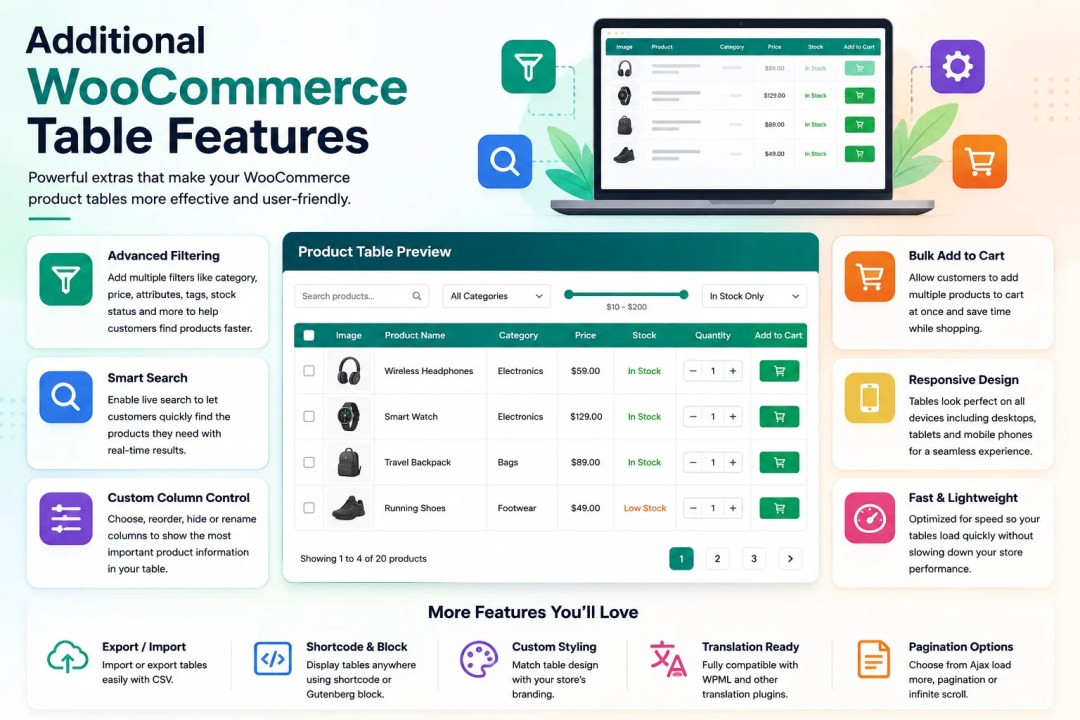
Beyond core filtering the WooCommerce product table plugin includes additional features worth understanding.
CSV and PDF Export
Customers can download the currently visible table as CSV or PDF. Useful for customers who want price lists. Useful for sharing product information with teams. Enable this feature if it serves your business.
Clear Filters Button
Customers apply filters then want to start over. A Clear Filters button resets everything instantly. Back to the original unfiltered view. Improves user experience.
Search Functionality
The AJAX search bar lets customers find products by typing. Instant results as they type. No page reloads. No delays. Just typing and seeing matching products appear.
Sticky Table Header
As customers scroll down the table the header stays visible at the top. They always know which column is which. Improves navigation on long tables.
Override Shop Page
You can replace your default WooCommerce shop page with your custom WooCommerce product table. Everything customers see when they visit your shop is your organized table with filters.
This is powerful because it changes the primary shopping experience. Customers arrive at your shop. They see your filterable WooCommerce table instead of the default layout. Everything is optimized for discovery.
Testing Your Filterable WooCommerce Product Table
Before going live thoroughly test your configuration.
Test each filter. Does the table update correctly when you select category filters? Do price filters work as expected? Does search function properly?
Test on mobile. Does the responsive design work? Are filters accessible? Can customers still browse easily on phones?
Test bulk actions if enabled. Do bulk add to cart and bulk quote functions work properly?
Test pagination. Do products display correctly on each page? Does navigation work smoothly?
The testing phase catches configuration issues before customers encounter them. A broken filter confuses customers. Testing catches this and lets you fix it before launch.
Customizing Your Filterable WooCommerce Product Table
A WooCommerce product table is flexible enough for different business models.
Create multiple tables for different purposes. One table for best sellers with popular filters. Another for new arrivals highlighting newest items. Another for clearance with aggressive filtering options.
Apply different tables to different pages or categories. Your main shop page has one table. Your sale category has another. Your new products category has another. Each serves its specific purpose.
Use role-based visibility to control who sees which filters. Wholesale customers might see different filters than retail customers. VIP members might see exclusive products or pricing.
The flexibility of a WooCommerce product table system means you’re not locked into one approach. You adapt tables to your business needs.
Measuring the Success of Your Filterable WooCommerce Product Table

After implementing your WooCommerce product table track what improves.
Browse time typically decreases. Customers find products faster. Less time searching means more time buying.
Click-through rate usually increases. Better organized products get more attention. More clicks happen.
Conversion rate typically goes up. Easier browsing means more purchases. Streamlined experience means fewer abandoned carts.
Customer satisfaction often improves. When shopping is easy customers are happy. Happy customers leave better reviews. Recommend your store. Come back.
Track these metrics. If your WooCommerce table isn’t improving results troubleshoot. Maybe filter options need adjustment. Maybe column choices need refinement. Debug and optimize.
Getting Started Today
Start by identifying which products would benefit most from a Filterable WooCommerce Product Table—your best sellers, highest-volume categories, or products that customers often struggle to find.
Build your first Filterable WooCommerce Product Table, test the search and filtering options, verify the mobile experience, and refine the layout based on customer behavior. As your store grows, expand your tables to additional product categories and continue optimizing them for better usability.
A Filterable WooCommerce Product Table doesn’t require coding knowledge or developer assistance. With the right plugin and configuration, you can create a faster, more organized shopping experience that helps customers find products quickly and complete purchases with less effort.
Stores that implement a Filterable WooCommerce Product Table often see improved product discovery, higher conversion rates, and increased sales. If you’re looking for a practical way to enhance your WooCommerce store, building a Filterable WooCommerce Product Table should be your next optimization project.