
Personalized products have become one of the more significant growth areas in e-commerce over the past several years and the reason is fairly straightforward. Customers are willing to pay more for something that feels made specifically for them, and businesses that offer that kind of customization tend to build stronger customer relationships than those selling purely off-the-shelf products.
The challenge is that personalization often requires the customer to provide something, a logo, a photo, a design file, a document, and WooCommerce does not have a native way to collect that. Getting a checkout files upload for WooCommerce system in place is the answer and this blog covers every realistic way to do it.
Why Add a File Upload Option To Your WooCommerce Store?
Before getting into solutions, it is worth spending a moment on why this feature matters operationally, because the business case goes beyond just convenience.
When a customer needs to submit a file with their order and there is no upload mechanism in place, what typically happens is a back and forth exchange over email that delays production, creates version control problems, and introduces the kind of friction that causes some customers to abandon the order entirely rather than deal with the process.
What we have observed with stores that implement proper upload file WooCommerce functionality is that order processing becomes cleaner, production timelines tighten up, and the customer experience improves significantly because everything the store needs to fulfill the order arrives with the order itself rather than trickling in over subsequent days.
The types of stores that benefit most include:
- Custom print and merchandise stores collecting design files
- Photography services receiving image submissions
- Personalized gift retailers taking photos for engraving or printing
- Legal or professional services collecting signed documents
- Fashion stores receiving measurement specifications or reference images
- Pet portrait artists or custom illustration services
The Options Available for Adding File Upload to WooCommerce
There are a few distinct approaches to getting file upload working on a WooCommerce store and they vary significantly in terms of complexity, flexibility, and ongoing maintenance requirements.
Here is an overview before we go into each one in detail:
- Custom code using WooCommerce hooks
- Contact form plugins with order integration
- General purpose file management plugins
- Dedicated WooCommerce file upload plugins
Option 1: Adding File Upload via Custom Code
For developers comfortable with PHP and WooCommerce’s hook system, building a basic file upload field directly into the product page is technically achievable without a plugin.
The general approach involves:
- Adding a file input field to the product page using the woocommerce_before_add_to_cart_button hook
- Handling the file upload when the product is added to the cart using woocommerce_add_to_cart_validation
- Storing the uploaded file path as cart item meta using woocommerce_add_cart_item_data
- Displaying the file information in the cart and order using woocommerce_get_item_data and woocommerce_checkout_create_order_line_item
- Making the uploaded file accessible from the order admin page
A basic implementation for a single file upload might look manageable on paper, but what we found is that the list of things that need to be handled beyond the core upload mechanism grows quickly:
- File type validation to prevent dangerous file formats from being uploaded
- File size validation against server limits
- Secure file storage that prevents direct public URL access to uploaded files
- Handling the upload on multiple pages like cart and checkout not just the product page
- Allowing customers to replace or delete uploaded files before completing their order
- Making files downloadable for the admin from the order details page
Each of these is solvable individually but the cumulative development and maintenance effort for a production-ready implementation is significant. What we think the code approach is genuinely suited for is simple single-file-upload scenarios on a single product page where the store has developer resources to maintain the implementation over time.
For anything more complex than that the dedicated plugin route is the more practical investment.
Option 2: Contact Form Plugins as a Workaround
Some store owners use contact form plugins like Gravity Forms or WPForms as a workaround for file collection by embedding a form on the product page or a dedicated submission page that collects the file alongside order reference information.
Gravity Forms, in particular, has reasonably capable file upload handling with support for multiple file types, size restrictions, and conditional logic that shows different fields based on what the customer selects.
Where this approach works:
- Simple scenarios where files are collected before or alongside an order rather than tied to a specific cart item
- Stores where the file submission is a separate step from the purchase and linking the two manually is operationally manageable
- Businesses where the form tool is already in use for other purposes and adding a file upload field is a low-effort extension of existing infrastructure
Where it breaks down:
What we noticed with the contact form workaround is that the disconnection between the form submission and the WooCommerce order creates ongoing management overhead. Files arrive in a form submission inbox, orders arrive in the WooCommerce order management area, and someone has to manually match them up and keep track of which orders have received their files and which have not.
For low order volumes this is manageable. For anything above a handful of orders per day it becomes a genuine operational problem.
Option 3: General File Management Plugins
Plugins like WP File Manager or similar WordPress file management tools can be used to create file submission areas but they are not designed to integrate with WooCommerce orders and carry the same disconnection problem as the contact form approach.
They are also generally not built with the customer-facing upload experience in mind, meaning the interface for submitting files tends to feel administrative rather than designed for a customer completing a product order.
We mention them here for completeness but in practice they are not a realistic primary solution for checkout files upload for WooCommerce in any but the most basic scenarios.
Option 4: The File Uploader Plugin by Extendons
This is the solution we would recommend for most WooCommerce stores with genuine file upload requirements and the reason comes down to how completely it covers the full lifecycle of a file submission from initial upload through to admin review and production, within the WooCommerce environment rather than alongside it.
The File Uploader for WooCommerce plugin by Extendons is built specifically for the WooCommerce order context which means files are tied directly to orders, accessible from the order management area, and managed through a workflow that includes approval, rejection, customer notification, and post-order modification, all without leaving the WooCommerce ecosystem.
Getting It Installed
- Download the File Uploader plugin ZIP file from your WooCommerce account
- Go to Plugins > Add New > Upload Plugin in your WordPress admin panel
- Upload the ZIP file and click Install Now
- Click Activate Plugin once installation completes
- Navigate to WooCommerce > Settings > File Uploader where all configuration lives
Setting Up Upload Rules: The Foundation of How the Plugin Works
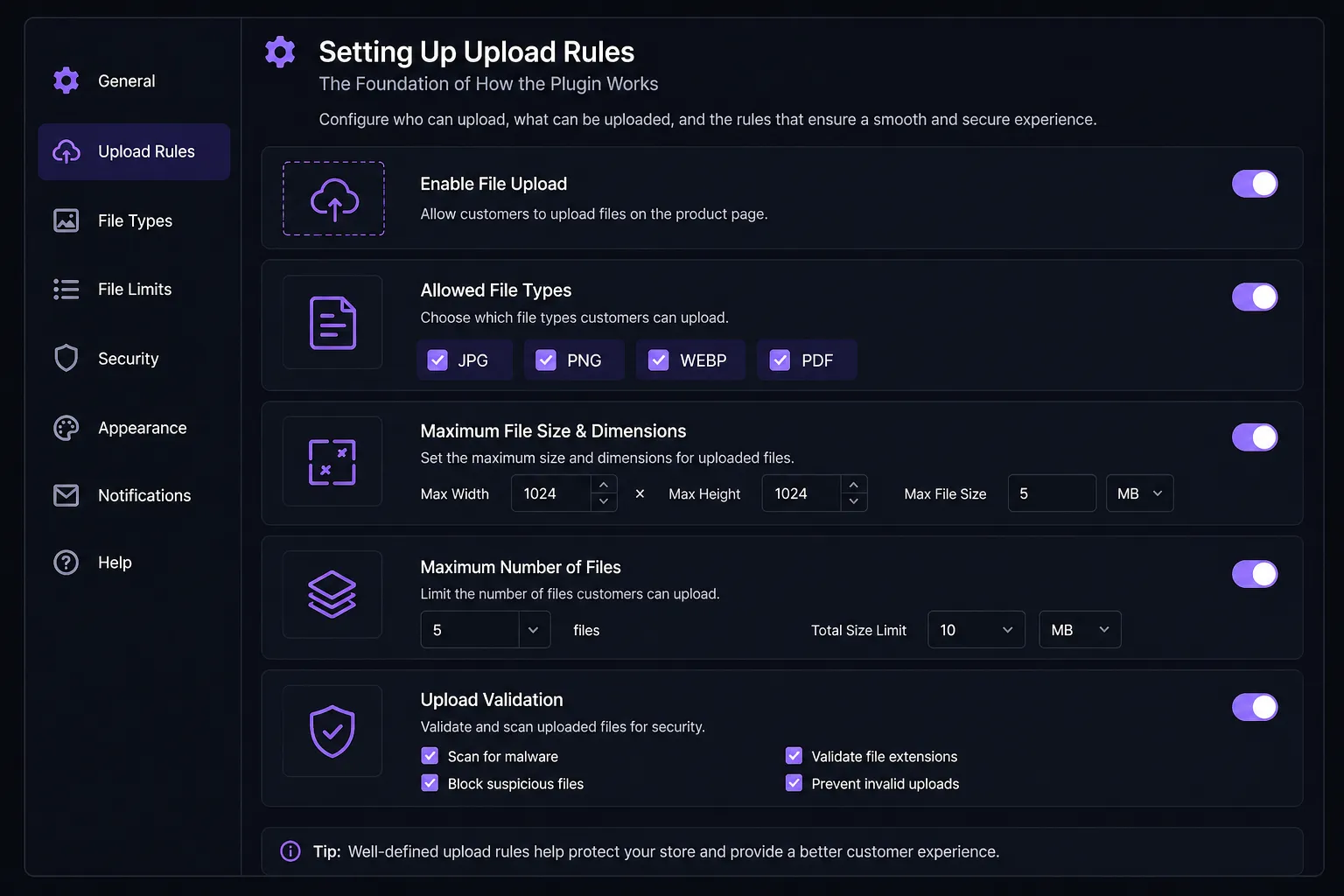
Everything in the File Uploader plugin is built around a rule system and understanding this before touching any other setting makes the whole configuration process considerably more logical.
A rule is a complete set of instructions that defines where the upload button appears, what files are accepted, how uploads are priced, and which products, categories, or user roles the rule applies to. Multiple rules can run simultaneously for different products or scenarios without conflicting.
Go to WooCommerce > Settings > File Uploader > Add Rule and work through the following:
Basic Rule Configuration:
- Enable or Disable: Must be checked for the rule to be active on the frontend
- Rule Name: Give this something descriptive that identifies the rule at a glance when managing multiple rules
Display On: Choose which pages the upload button appears on:
- Product Page
- Cart Page
- Checkout Page After Notes
- Checkout Page Alongside Cart Items
- Cart Page Alongside Cart Items
- Thank You Page
- Account Page
- After Order Completion
Main Upload Settings:
- Label: The text appearing above the upload button on the frontend
- Upload File Button Text: The actual button label
- Background Color and Text Color: Style the button to match your store design
- Allowed Extension: File types you will accept, for example jpg, png, pdf, ai, svg
- Maximum Upload Size: The largest file accepted in MB or KB
- Maximum File Upload: How many files a customer can submit within this rule
- Customer Notes: Enable to allow customers to attach written notes alongside their file. Check Required if the note is mandatory for your production process
- Allow Upload Modification: Enables customers to replace or update their file after submission, essential for stores using the approval and rejection workflow
- Price: Set a fee for the file upload if applicable
- Discount Type and Discount Price: Offer fixed or percentage discounts on the upload fee
- Price Per File Upload: Charge per individual file uploaded
- Apply Fee to Item Subtotal: Charge a single flat fee per order regardless of file count
- Description: Instructions that appear inside the upload popup
Restriction Settings:
- Product and Category Restrictions: Limit the upload button to specific products or categories so it only appears for relevant items
- User Role Restrictions: Control which customer types see the upload option
The Features That Make This Plugin Stand Out
Once the basic rule is in place the full picture of what the upload file WooCommerce plugin offers becomes clear and what we think is worth highlighting is how many of the features address real operational problems rather than just adding functionality for its own sake.
Drag and Drop Upload
Customers can drag files directly into the upload area rather than navigating through folder structures to find and select them. What we observed is that this seemingly small UX improvement meaningfully reduces upload abandonment particularly on mobile where folder navigation is more cumbersome.
File Preview and Deletion Before Purchase
Customers can preview what they have uploaded and delete or replace it before placing their order. This catches errors at the submission stage rather than after the order has been placed which reduces the admin overhead of dealing with incorrect files that need to be replaced post-order.
Multiple File Uploads
Single or multiple files can be submitted within a single rule which covers the scenarios where an order requires several different files, like separate front and back design files for a custom product or multiple reference images for a portrait commission.
Post-Order File Management
The Thank You page and My Account page upload options give customers a path to submit or replace files after their order is placed without contacting support. For stores where customers occasionally forget to upload at the time of ordering this self-service post-order upload capability significantly reduces support volume.
From the My Account page customers can:
- View all uploaded files across their orders
- Check the status of each submission
- Add new files to existing orders
- Preview and replace previously submitted files
Admin Approval and Rejection Workflow
Every uploaded file is visible from the order details page in the WooCommerce admin. Files can be approved or rejected individually with feedback notes attached to rejections explaining exactly what is needed. Customers receive automatic email notifications on both outcomes.
Once a file is approved it is locked against further customer modification which keeps the production process clean and prevents last-minute file swaps after production has begun.
Google Drive Integration
For stores with high upload volume where server disk usage is a concern, the plugin connects to Google Drive and saves customer uploaded files directly to a specified folder in Drive rather than on the hosting server. Setup involves creating a Google Cloud Project, enabling the Drive API, configuring OAuth credentials, and connecting through the plugin’s authorization flow.
Custom Folder Storage
If Google Drive is not needed, a custom server folder path can be defined for uploaded files so they are stored separately from product images and other store data keeping everything organized.
Shortcode Support
The [extendons_upload_button] shortcode places the upload button anywhere on a page through page builders like Elementor, WPBakery, and Divi for layouts where the standard hook-based placement does not work.
Recaptcha Integration
A recaptcha option adds a security layer to the upload process preventing automated spam submissions from cluttering the order management area.
Why the File Uploader Plugin Is the Best Option for Most Stores
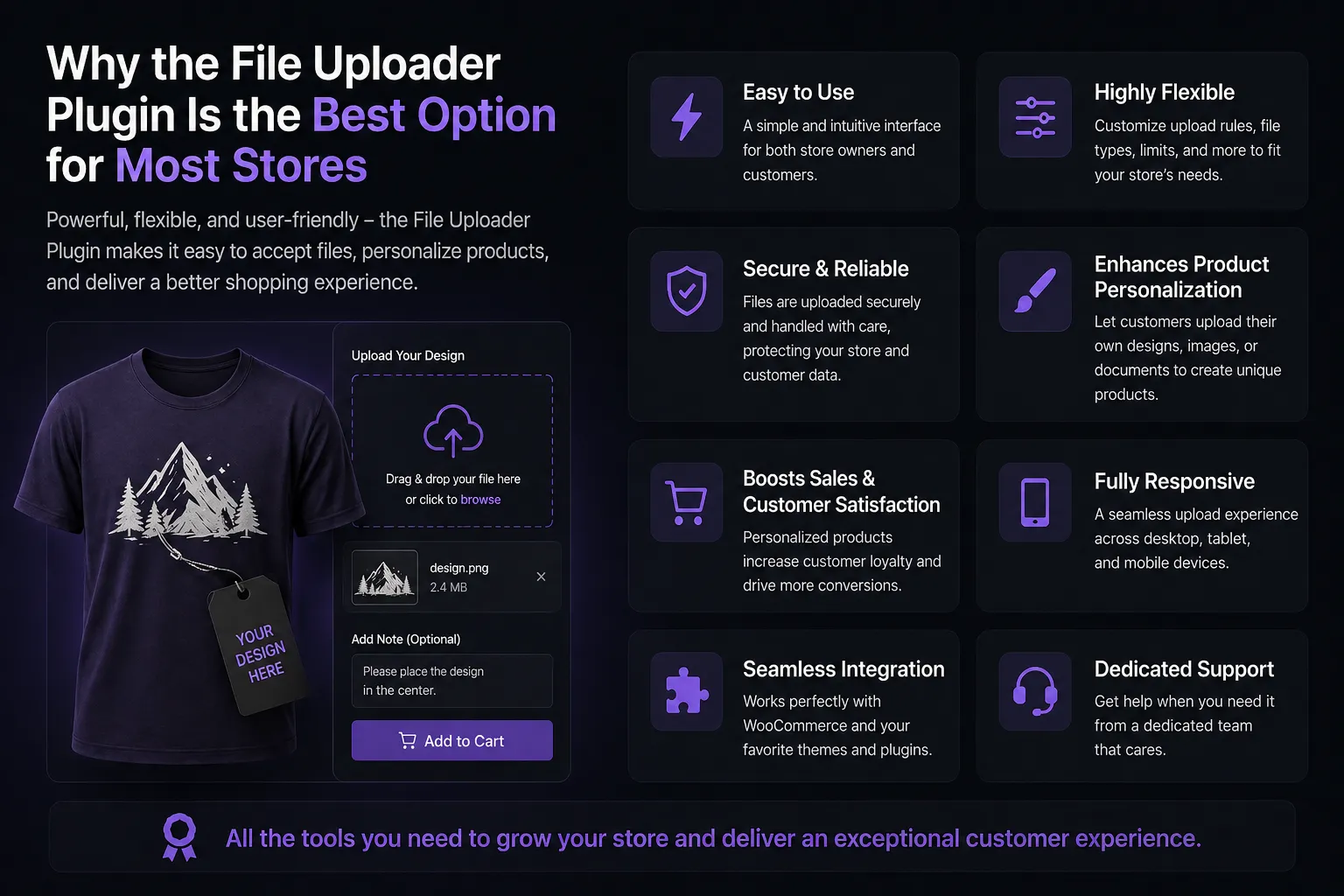
Having looked at all the available approaches to checkout files upload for WooCommerce what we think becomes clear is that the Extendons plugin addresses the problem more completely than any alternative and the reasons are worth stating directly.
It lives within WooCommerce rather than alongside it
Unlike contact form workarounds and general file management plugins, every file submitted through this plugin is tied directly to the specific WooCommerce order it belongs to. Admins see files in the order, customers manage files from their account, and nothing requires manual matching or cross-referencing between separate systems.
The rule system handles complexity without becoming unmanageable
Multiple rules for different products, different customer types, and different upload scenarios can coexist without conflicting. Managing that complexity through a visual rule interface rather than code means it stays maintainable as requirements evolve.
The approval workflow closes the loop
Most upload solutions stop at collecting the file. The Extendons plugin completes the cycle with admin review, approval or rejection with feedback, automatic customer notification, and a clear path for customers to resubmit when needed. That complete workflow is what makes it production-ready rather than just functional.
Post-order upload capability is genuinely rare
The ability for customers to upload or replace files from the Thank You page and My Account page after the order is placed is something that very few upload solutions provide and it addresses a real operational problem that every store with file upload requirements eventually encounters.
Pricing flexibility adds revenue potential
The ability to charge for file uploads either per file or as a flat order fee turns the upload feature into a revenue line in addition to being a functional necessity, which is something the code-based and contact form approaches do not handle natively.
Cons Worth Mentioning
We think it is worth being straightforward about the limitations too:
- The plugin is a paid solution which adds to the store’s operational costs
- The Google Drive integration setup requires working through the Google Cloud Console which involves a few technical steps that may feel unfamiliar to non-technical store owners
- Stores with very simple single-file upload needs on a single product might find the rule-based system more configuration than their scenario requires
Summary and Additional Tips
What we think the right takeaway from all of this is that the approach you choose for upload file WooCommerce functionality should match the actual complexity of your requirements rather than defaulting to the simplest option regardless of fit.
For a developer with a very simple use case and the capacity to maintain custom code, the hook-based approach is viable. For stores already using Gravity Forms for other purposes and with low order volumes, the form integration workaround might be enough. For any store where file upload is central to how custom orders work and where the admin workflow around reviewing and approving files matters, the Extendons plugin is the solution that covers the full picture.
A few additional tips worth keeping in mind regardless of which approach you use:
- Always define allowed file extensions explicitly and keep the list as narrow as your production process allows. Accepting every file type creates both security risk and operational problems when unsupported formats arrive
- Communicate file requirements clearly on the product page before the customer reaches the upload button. Specifying required dimensions, file formats, color modes, and resolution requirements upfront reduces incorrect submissions significantly
- Test the upload experience from the customer side using a fresh browser session before going live. What feels obvious from the admin configuration side is not always immediately clear to a first-time customer
- If you are charging for file uploads, make sure the fee and what it covers is clearly labeled on the product page and in the cart so the charge does not come as a surprise at checkout
- For stores using Google Drive integration, set up a clear folder naming convention from the start because a disorganized Drive folder with hundreds of customer uploads and no structure becomes very difficult to navigate once order volume picks up
Getting checkout files upload for WooCommerce right from the beginning saves a significant amount of operational friction down the line, and for stores where personalized products are a meaningful part of the business, it is one of those foundational features that everything else depends on working properly.